> ## Documentation Index
> Fetch the complete documentation index at: https://blog.cytric.nl/llms.txt
> Use this file to discover all available pages before exploring further.
# Mongodb discordjs
[](https://postimg.cc/N24TvS4D)
# How to Set Up the Template Bot on Cytric Using GitHub
## Step-by-Step Instructions
### 1. Log into the Cytric Panel and *Head over to the Startup page*
* Go to [Cytric Panel](https://panel.Cytric.nl/) and log into your account.
### 2. Clone the GitHub Repository
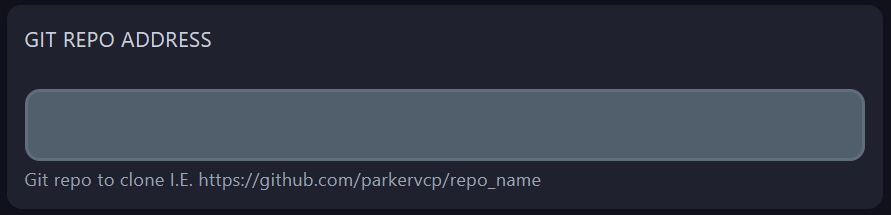
* **GIT REPO ADDRESS**:
* Enter the GitHub repository link.
* Repo Link: `https://github.com/Cytric/Discord-JS-MongoDB-Template`
* **Description**: This is the GitHub repository to clone.
 ### 3. Select the Install Branch
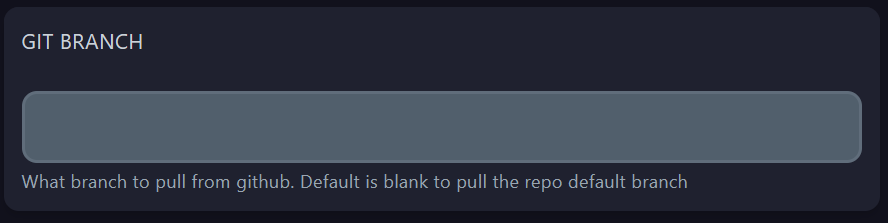
* **INSTALL BRANCH**:
* Enter `main`.
* **Description**: The branch of the bot to install.
### 3. Select the Install Branch
* **INSTALL BRANCH**:
* Enter `main`.
* **Description**: The branch of the bot to install.
 ### 4. User Uploaded Files
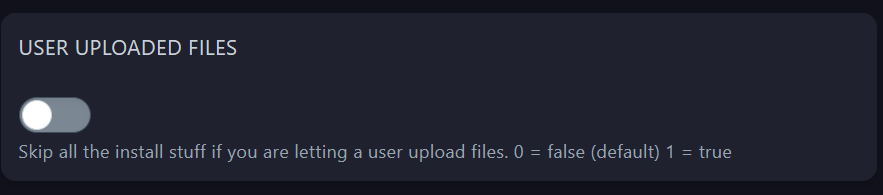
* **USER UPLOADED FILES**:
* Disable to skip all the install stuff.
* **Description**: Skip all the install stuff if you are letting a user upload files. `0 = false` (default), `1 = true`.
### 4. User Uploaded Files
* **USER UPLOADED FILES**:
* Disable to skip all the install stuff.
* **Description**: Skip all the install stuff if you are letting a user upload files. `0 = false` (default), `1 = true`.
 ### 5. Auto Update
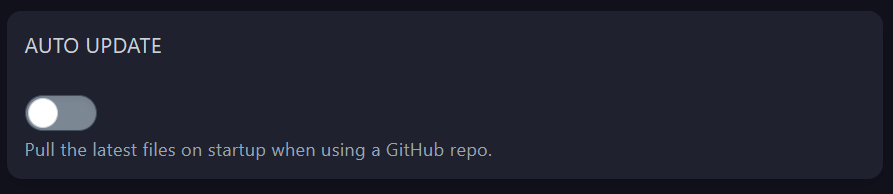
* **AUTO UPDATE**:
* Enable or disable based on your preference.
* **Description**: Pull the latest files on startup when using a GitHub repo.
*Note: After manually changing the code in the panel - updates made on the original repository will be blocked.*
### 5. Auto Update
* **AUTO UPDATE**:
* Enable or disable based on your preference.
* **Description**: Pull the latest files on startup when using a GitHub repo.
*Note: After manually changing the code in the panel - updates made on the original repository will be blocked.*
 ### 6. Specify the Bot Entry Point
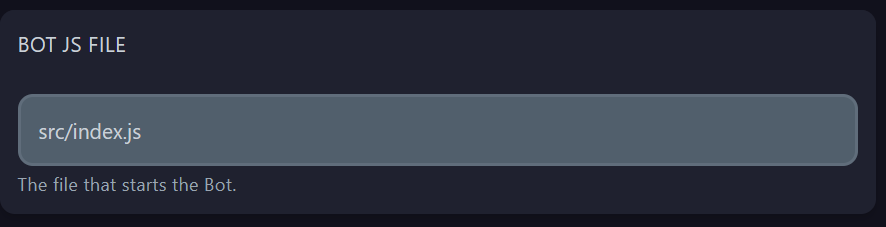
* **BOT JS FILE**:
* Enter `src/index.js`.
* **Description**: The file that starts the bot.
### 6. Specify the Bot Entry Point
* **BOT JS FILE**:
* Enter `src/index.js`.
* **Description**: The file that starts the bot.
 ### 7. Install Additional Node Packages
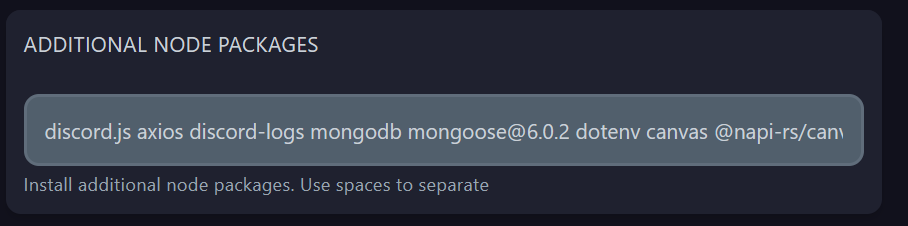
* **ADDITIONAL NODE PACKAGES**:
* Enter `discord.js axios discord-logs mongodb mongoose@6.0.2 dotenv canvas @napi-rs/canvas os discord-gamecord dotenv`.
* **Description**: Install additional node packages. Use spaces to separate.
### 7. Install Additional Node Packages
* **ADDITIONAL NODE PACKAGES**:
* Enter `discord.js axios discord-logs mongodb mongoose@6.0.2 dotenv canvas @napi-rs/canvas os discord-gamecord dotenv`.
* **Description**: Install additional node packages. Use spaces to separate.
 ### 8. GitHub Authentication
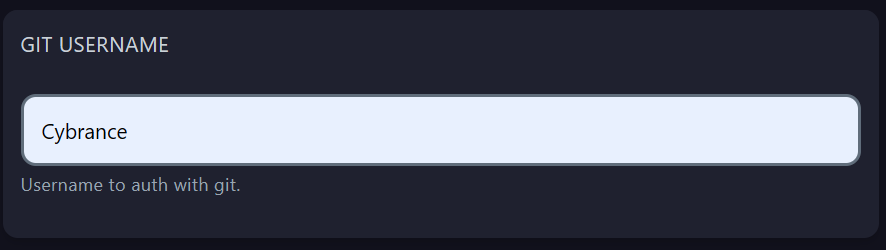
* **GIT USERNAME**: - Enter `Cytric` as the GitHub username. - **Description**: Username to authenticate with Git.
### 8. GitHub Authentication
* **GIT USERNAME**: - Enter `Cytric` as the GitHub username. - **Description**: Username to authenticate with Git.
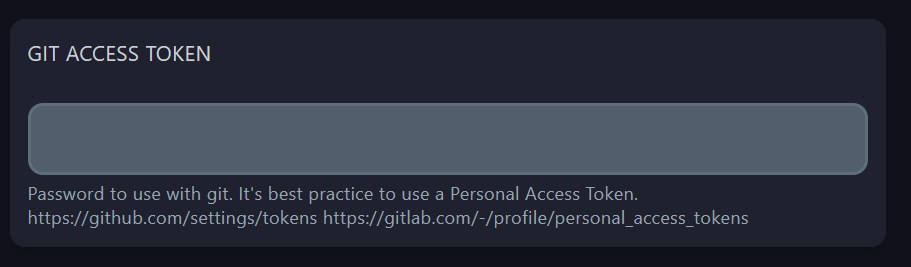
 * **GIT ACCESS TOKEN** `(Not needed)`:
* Enter your GitHub Personal Access Token if you are using it out of a own private repository.
* **Description**: Password to use with Git but with a private repository. It's best practice to use a Personal Access Token. [Create a GitHub Personal Access Token](https://github.com/settings/tokens).
* **GIT ACCESS TOKEN** `(Not needed)`:
* Enter your GitHub Personal Access Token if you are using it out of a own private repository.
* **Description**: Password to use with Git but with a private repository. It's best practice to use a Personal Access Token. [Create a GitHub Personal Access Token](https://github.com/settings/tokens).
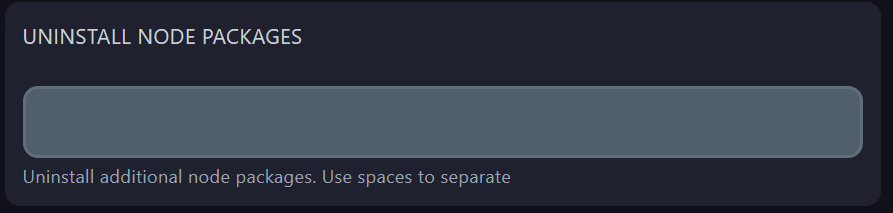
 ### 9. Uninstall Node Packages
* **UNINSTALL NODE PACKAGES**:
* Leave this field empty or enter the packages you want to uninstall.
* **Description**: Uninstall node packages. Use spaces to separate.
### 9. Uninstall Node Packages
* **UNINSTALL NODE PACKAGES**:
* Leave this field empty or enter the packages you want to uninstall.
* **Description**: Uninstall node packages. Use spaces to separate.
 ## MongoDB Setup Instructions
### Step 1: Follow our Cytric MongoDB Guide
* Go to [MongoDB Guide](https://www.mongodb.com/resources/products/fundamentals/clusters) and follow the prompts to set up a new cluster.
### Step 2: Update Your .env file
* Edit your Discord Bot Token and MongoDB URL in the `.env` file:
```env theme={null}
token=your_discord_bot_token
MONGODBURI=your_mongodb_connection_string
```
## Need support for setting up your bot?
[support@Cytric.nl](mailto:support@Cytric.nl)
## MongoDB Setup Instructions
### Step 1: Follow our Cytric MongoDB Guide
* Go to [MongoDB Guide](https://www.mongodb.com/resources/products/fundamentals/clusters) and follow the prompts to set up a new cluster.
### Step 2: Update Your .env file
* Edit your Discord Bot Token and MongoDB URL in the `.env` file:
```env theme={null}
token=your_discord_bot_token
MONGODBURI=your_mongodb_connection_string
```
## Need support for setting up your bot?
[support@Cytric.nl](mailto:support@Cytric.nl)